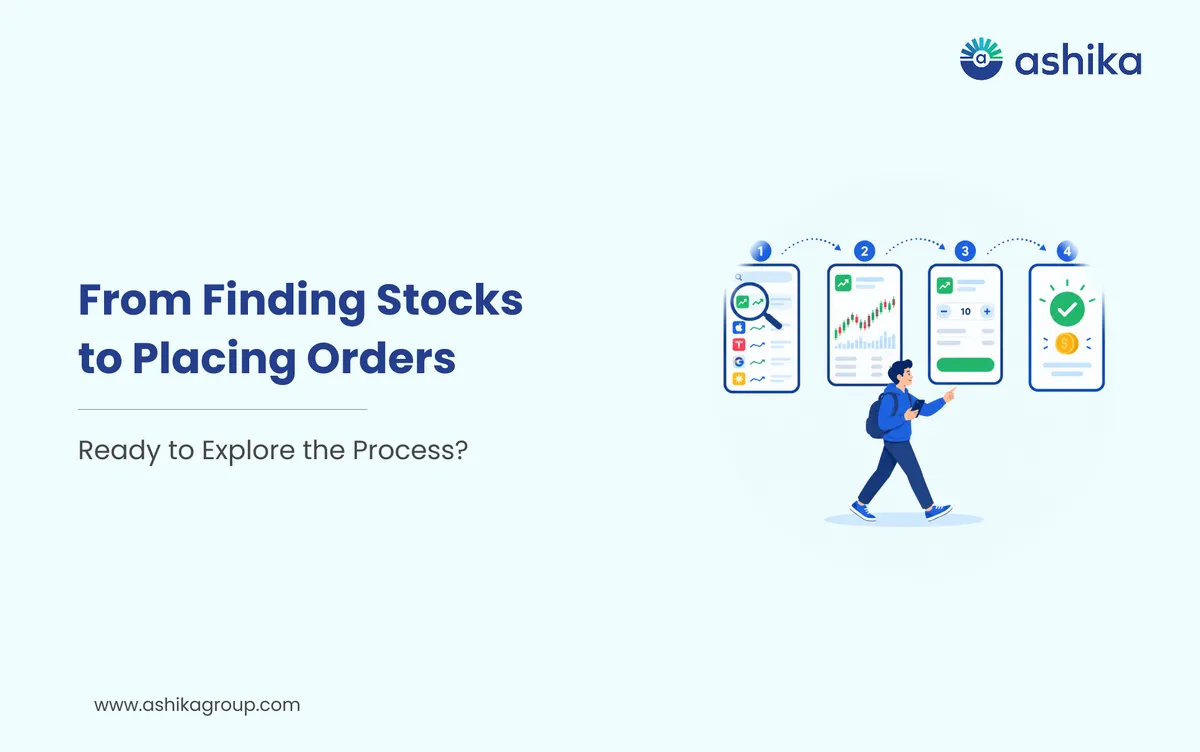
Starting out on the stock market can be a bit of a mystery, particularly if you're using an investment app for the first time. You'll probably have all sorts of questions about where the stocks are, how you find out what they're worth, what you look at before you place an order and how you then track your investment.
The Dhanush 2.0 app from Ashika Stock Services brings together a number of investment and trading features in one app. If you have an active trading and Demat account you can use the app to view stocks, view market data, place orders and track your portfolio.
This screen by screen walk-through explains the general process of buying shares via Dhanush 2.0.
Table of Contents
- Screen 1: Log In to the Dhanush 2.0 App
- Screen 2: Explore the Home Dashboard
- Screen 3: Search for a Stock
- Screen 4: Review the Stock Before Investing
- Screen 5: Place a Buy Order
- Screen 6: Confirm and Track Your Order
- Screen 7: Monitor Your Holdings and Portfolio
- A Few Things to Remember Before You Invest
- Start Exploring the Stock Market with Dhanush 2.0
- Frequently Asked Questions
Screen 1: Log In to the Dhanush 2.0 App
Start by downloading the Dhanush 2.0 app via the official download link: https://ashika.go.link/downloadapp.
Open the app and log in with your registered details. Complete any authentication step that the app may ask you to do.
If you're a new user you'll need an active trading and Demat account prior to being able to place an order. You'll need to complete the relevant account opening and KYC formalities first. If you already have an account then just check that your login details are working and that the equity segment is enabled.
Once you're on the home screen, take a moment to get to know the various sections available.
Screen 2: Explore the Home Dashboard
The home dashboard is where you start off when you're in the app and it's your gateway to all the different markets and investment features.
Depending on the version and your account settings you may see options to explore stocks, mutual funds, IPOs, ETFs and other investment products.
You can also look at the various features such as Ask Ashika AI, the AI Screener, Fund Finder and Price Alerts. Those can all help you in terms of getting information, finding funds and keeping up to date with price movements.
Before you go any further, understand what each feature does. Don't take a stock that appears on a screen or in a search result as being in any way a recommendation to buy.
Screen 3: Search for a Stock
Once you've got a company you'd like to look at, use the search function to find its stock.
Enter the company name or its stock symbol in the search bar. Double check the search result to ensure that you have indeed selected the correct company and exchange listing.
Open the stock's detail page to see the current market price, the price movement, the charts and all the other market data that's available.
You can also add the stock to a watchlist if you want to keep an eye on it prior to making a decision to invest. That way you can track the price without necessarily placing an order.
Screen 4: Review the Stock Before Investing
Before you buy any shares, take the time to get to know the company and its share performance. Don't just go on the latest price movement.
Review the information available on the stock details screen, including:
- Current market price: Most recent available trading price.
- Price chart: How the stock has performed over a selected period.
- Trading volume: The number of shares traded over a given period.
- Company information: Available business and financial information.
- Market trends: Information that may be of use in helping you to understand price movement.
You can use the app's AI Screener and a range of other research tools to look at stocks and get access to the information you need. Just be sure to check the details yourself and take into account the company's fundamentals, valuation, business and the risks involved prior to investing.
Screen 5: Place a Buy Order
Having done your research, open the relevant stock and look for the Buy.
You will generally need to enter the following details:
- Order type: Choose between a market order and a limit order, depending on your requirements and the available options.
- Quantity: Enter the number of shares you'd like to buy.
- Price: For a limit order you enter the maximum price you're willing to pay per share. A market order is executed at the best available market price (subject to execution conditions).
- Product type: Select the relevant product type (e.g. delivery) if you're purchasing the shares for the purpose of holding.
Please take a good look at the order details before you carry on. Check the estimated order value, the charges that are going to apply and the funds that are available.
A market order won't guarantee you'll get filled at the last displayed price. A limit order can remain open if the market doesn't reach your limit price.
Screen 6: Confirm and Track Your Order
Once you've placed the order, go into the order status section to see whether it's been executed.
An order can be displayed as completed, pending, partially executed, rejected or cancelled. The status will be determined by market conditions, available liquidity, the order itself and the relevant trading rules.
If your order gets executed then check the quantity and the average execution price. If it's still pending then check its status rather than going ahead and placing a further order without first checking whether the original order is still in fact pending.
For delivery purchases the shares are credited to your linked Demat account following the relevant settlement.
Screen 7: Monitor Your Holdings and Portfolio
Once you've bought the shares, go to the portfolio (or holdings) page to see what you've got.
You can generally check details such as:
- Shares purchased and quantities held.
- Average purchase price.
- Current market price.
- Current value of your holdings.
- Unrealised profit or loss.
Use this section to track your portfolio over time. You can also have a look at your realised and unrealised P&L (where available) to see the difference between the P&L on shares you've sold and the P&L on the shares you still hold.
Remember that market prices are constantly in flux so the value of your holdings and your unrealised P&L will be subject to change throughout the day.
A Few Things to Remember Before You Invest
An investment app makes it easier to get into the stock market, but it doesn't eliminate investment risk. Share prices can go up or down and you could end up with some or all of your money lost in a stock.
Before you place an order you should understand the business of the company, your investment time horizon and your own ability to cope with market volatility. You should also check the brokerage and all other applicable transaction charges. Never share your password, PIN or OTP with anyone.
Ready to open yours?
Free account opening · Paperless eKYC · Live in 10 minutes
Start Exploring the Stock Market with Dhanush 2.0
From stock searching and market data to placing orders and tracking your portfolio, Dhanush 2.0 brings the key investment features into one app.
Take the time to understand the tools available and check every order before you confirm it. Having a good grasp of the process will go a long way to helping you get through your stock market investing.
Download the Dhanush 2.0 app: https://ashika.go.link/downloadapp
Frequently Asked Questions
Can I buy shares on Dhanush 2.0 without opening a Demat Account?
No. You need an active trading and Demat Account, along with the required KYC formalities and an enabled equity segment, to place share purchase orders.
Can I check a stock's price on Dhanush 2.0 without buying it?
Yes. You can search for a stock, view its available market data and add it to a watchlist to monitor its price without placing an order.
What happens if my buy order on Dhanush 2.0 remains pending?
A pending order has not been fully executed. Check its status and the available market conditions before placing another order to avoid unintentionally duplicating your trade.
How will I know if the shares I purchased have been credited to my Demat Account?
Once the delivery transaction is settled, check your holdings and Demat statement to confirm the credited quantity.
Can I cancel a buy order after placing it on Dhanush 2.0?
You can generally cancel an order while it is still open or pending, subject to the platform's rules. An already executed portion of a partially filled order cannot be cancelled.
Was this article helpful?
Thanks for your feedback!

 7 min read